PC पर कीबोर्ड से Temple Run कैसे खेलें - संपूर्ण गाइड 🎮
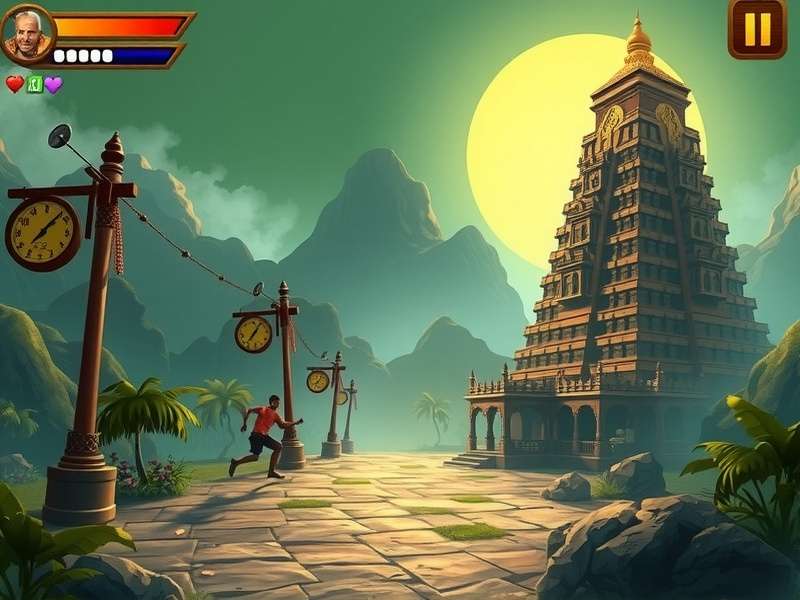
परिचय 🌟
क्या आप जानते हैं कि Temple Run को PC पर कीबोर्ड से खेलना संभव है? इस लेख में, हम आपको step-by-step guide देंगे कि कैसे आप अपने कंप्यूटर पर Temple Run का आनंद ले सकते हैं।
इस गाइड में आप सीखेंगे:
- सही Android emulator का चयन
- Temple Run की installation process
- Keyboard controls की setup
- Performance optimization tips
- Advanced gameplay strategies
Android Emulator का चयन 🤔
PC पर Temple Run खेलने के लिए सबसे पहले आपको एक अच्छा Android emulator चुनना होगा। यहाँ कुछ बेहतरीन विकल्प हैं:
BlueStacks - सबसे लोकप्रिय विकल्प
BlueStacks Android emulators में सबसे ज्यादा popular है। इसकी key features include:
- User-friendly interface
- Pre-configured game controls
- Regular updates
- Multi-instance support
NoxPlayer - गेमिंग के लिए optimize
NoxPlayer विशेष रूप से gaming के लिए designed किया गया है। इसके advantages:
- High performance
- Customizable controls
- Macro recording
- Root access
Installation Process 📥
Step-by-step guide to install Temple Run on PC:
Step 1: Emulator Download
Official website से emulator download करें। हमेशा trusted sources से ही download करें।
Step 2: Installation
Downloaded file को run करें और installation wizard के instructions follow करें।
Step 3: Google Account Setup
Emulator में Google account add करें ताकि Play Store access हो सके।
Step 4: Temple Run Download
Play Store से Temple Run search करें और install करें।
Keyboard Controls Setup ⌨️
PC पर Temple Run खेलने का सबसे बड़ा advantage है customized keyboard controls।
| क्रिया (Action) | डिफ़ॉल्ट की (Default Key) | वैकल्पिक की (Alternative Key) |
|---|---|---|
| दाएं मुड़ें (Turn Right) | D या → | NumPad 6 |
| बाएं मुड़ें (Turn Left) | A या ← | NumPad 4 |
| ऊपर कूदें (Jump) | W या ↑ | Spacebar |
| नीचे स्लाइड करें (Slide) | S या ↓ | Ctrl |
| पावर-अप्स इस्तेमाल करें (Use Power-ups) | Spacebar | Shift |
Performance Optimization ⚡
सबसे अच्छा gaming experience के लिए इन settings को apply करें:
Graphics Settings
- Resolution: 1920x1080 (अपने monitor के according)
- DPI: 240 (optimal for gaming)
- Frame Rate: 60 FPS
System Allocation
- RAM: 4GB (minimum), 8GB (recommended)
- CPU Cores: 4 cores
- Graphics Mode: Performance
Advanced Gameplay Strategies 🏆
Keyboard controls के साथ high scores achieve करने के लिए इन strategies को follow करें:
Perfect Timing
Keyboard buttons के साथ precise timing achieve करना आसान होता है। Jump और slide के लिए exact moment पर button press करें।
Custom Controls
अपने comfortable position के according keys assign करें। Most players prefer:
- Left hand for movement (A, W, S, D)
- Right hand for power-ups (Spacebar, Shift)
यूजर कमेंट्स 💬
बहुत अच्छी गाइड! BlueStacks के साथ मेरा Temple Run बहुत smooth चल रहा है।
Keyboard controls setup करने में थोड़ी difficulty हुई, लेकिन article ने help की।